
ラジオボタンに文字列と画像の両方を表示した場合の位置関係を設定する
ラジオボタンに文字列と画像の両方を表示した場合、デフォルトでは画像が左側、文字列が右側に表示されます。また垂直方向はそれぞれの中央が同じ位置になるように表示されます。ここではラジオボタンに文字列と画像の両方を表示した場合の水平方向及び垂直方向に位置関係を設定する方法について解説します。
なおラジオボタンでは画像を設定していない場合は文字列の左側に小さなサークルが表示されます。このサークルは画像と同じ扱いになっているので文字列だけをラジオボタンに表示している場合は文字列とこのサークルの位置関係となります。
(2022 年 04 月 11 日公開 / 2022 年 04 月 11 日更新)
画像に対する文字列の水平位置を設定する
画像に対する文字列の水平位置を設定するには JRadioButton クラスの親クラスである AbstractButton クラスで定義されている setHorizontalTextPosition メソッドを使います。
public void setHorizontalTextPosition(int textPosition)
アイコンに対するテキストの位置(水平方向)を設定します。
パラメータ:
textPosition - 次の値のいずれか。
SwingConstants.RIGHT
SwingConstants.LEFT
SwingConstants.CENTER
SwingConstants.LEADING
SwingConstants.TRAILING (デフォルト)
例外:
IllegalArgumentException - textPositionが上記の正当な値のどれでもない場合
引数には画像に対する文字列の水平位置を指定します。指定できる値は次の通りです。
JRadioButton.LEFT       左詰
JRadioButton.CENTER     中央
JRadioButton.RIGHT      右詰
JRadioButton.LEADING    左詰
JRadioButton.TRAILING   右詰 (デフォルト)
※各値は javax.swing.SwingConstants インターフェースで定義されており、 JRadioButton クラスは SwingConstants インターフェースを実装したクラスです。
※ LEADING (先頭)と TRAILING (末)は利用している言語によって位置が変わります。日本語や英語のように左から右へ文字を表示する場合は LEADING が左詰で TRAILING が右詰ですが、右から左へ文字を表示するのが普通の言語の場合には LEADING が右詰で TRAILING が左詰となります。
実際の使い方は次のようになります。
JRadioButton radio = new JRadioButton("Apple");
ImageIcon icon = new ImageIcon("./img/sample.png");
radio.setIcon(icon);

radio.setHorizontalTextPosition(JRadioButton.CENTER);
水平方向の位置として JRadioButton.CENTER を設定した場合、画像の上に重なるように文字列が表示されることになります。
それでは簡単なサンプルプログラムを作って試してみます。テキストエディタで次のように記述したあと、 JSample12_1.java という名前で保存します。
import javax.swing.JFrame;
import javax.swing.JRadioButton;
import javax.swing.JPanel;
import javax.swing.ButtonGroup;
import javax.swing.ImageIcon;
import java.awt.Container;
import java.awt.BorderLayout;
import java.awt.Dimension;

class JSample12_1 extends JFrame{

  public static void main(String args[]){
    JSample12_1 frame = new JSample12_1("MyTitle");
    frame.setVisible(true);
  }

  JSample12_1(String title){
    setTitle(title);
    setBounds(100, 100, 600, 400);
    setDefaultCloseOperation(JFrame.EXIT_ON_CLOSE);

    ImageIcon icon = new ImageIcon("./not_select.png");
    ImageIcon icon_select = new ImageIcon("./select.png");

    JRadioButton radio1 = new JRadioButton("Apple", icon);
    radio1.setHorizontalTextPosition(JRadioButton.LEFT);

    JRadioButton radio2 = new JRadioButton("Orange", icon);
    radio2.setHorizontalTextPosition(JRadioButton.CENTER);

    JRadioButton radio3 = new JRadioButton("Melon", icon);
    radio3.setHorizontalTextPosition(JRadioButton.RIGHT);

    ButtonGroup bgroup1 = new ButtonGroup();
    bgroup1.add(radio1);
    bgroup1.add(radio2);
    bgroup1.add(radio3);

    JRadioButton radio4 = new JRadioButton("Apple");
    radio4.setHorizontalTextPosition(JRadioButton.LEFT);

    JRadioButton radio5 = new JRadioButton("Orange");
    radio5.setHorizontalTextPosition(JRadioButton.CENTER);

    JRadioButton radio6 = new JRadioButton("Melon");
    radio6.setHorizontalTextPosition(JRadioButton.RIGHT);

    ButtonGroup bgroup2 = new ButtonGroup();
    bgroup2.add(radio4);
    bgroup2.add(radio5);
    bgroup2.add(radio6);

    JPanel p = new JPanel();
    p.add(radio1);
    p.add(radio2);
    p.add(radio3);
    p.add(radio4);
    p.add(radio5);
    p.add(radio6);

    Container contentPane = getContentPane();
    contentPane.add(p, BorderLayout.CENTER);
  }
}
次のようにコンパイルを行います。
javac JSample12_1.java
コンパイルが終わりましたら実行します。
java JSample12_1
ラジオボタンを 6 つ追加しました。最初の 3 つラジオボタンには画像を設定してあります。 1 つ目のラジオボタンは文字列が左で画像が右に表示、 2 つ目のラジオボタンは文字列と画像が重なって表示、 3 つ目のラジオボタンは文字列が右で画像が左に表示されています。
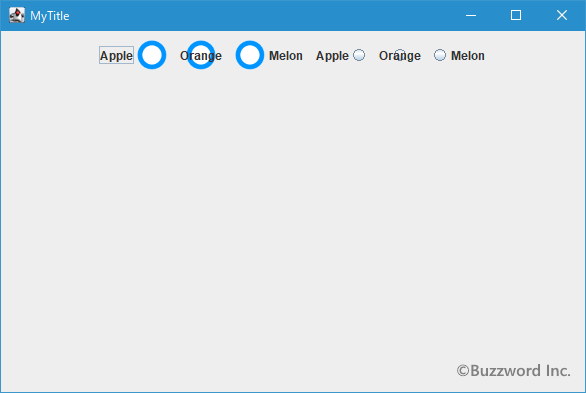
4 つ目から 6 つ目までのラジオボタンには画像を設定していませんが、もともと表示されている小さなサークルが画像と同じように文字列との位置関係が変更されます。
画像に対する文字列の垂直位置を設定する
画像に対する文字列の垂直位置を設定するには JRadioButton クラスの親クラスである AbstractButton クラスで定義されている setVerticalTextPosition メソッドを使います。
public void setVerticalTextPosition(int textPosition)
アイコンに対するテキストの位置(垂直方向)を設定します。
パラメータ:
textPosition - 次の値のいずれか。
SwingConstants.CENTER (デフォルト)
SwingConstants.TOP
SwingConstants.BOTTOM
引数には画像に対する文字列の垂直位置を指定します。指定できる値は次の通りです。
JRadioButton.TOP     上端に合わせる
JRadioButton.CENTER  中央(デフォルト)
JRadioButton.BOTTOM  下端に合わせる
※各値は javax.swing.SwingConstants インターフェースで定義されており、 JRadioButton クラスは SwingConstants インターフェースを実装したクラスです。
実際の使い方は次のようになります。
JRadioButton radio = new JRadioButton("Apple");
ImageIcon icon = new ImageIcon("./img/sample.png");
radio.setIcon(icon);

radio.setVerticalTextPosition(JRadioButton.TOP);
JRadioButton.TOP を設定した場合は、文字列と画像の上端を合わせるように表示します。画像の上部に文字列が表示されるわけではありません。同じようように JRadioButton.BOTTOM を設定した場合は、文字列と画像の下端を合わせるように表示します。
それでは簡単なサンプルプログラムを作って試してみます。テキストエディタで次のように記述したあと、 JSample12_2.java という名前で保存します。
import javax.swing.JFrame;
import javax.swing.JRadioButton;
import javax.swing.JPanel;
import javax.swing.ButtonGroup;
import javax.swing.ImageIcon;
import java.awt.Container;
import java.awt.BorderLayout;
import java.awt.Dimension;

class JSample12_2 extends JFrame{

  public static void main(String args[]){
    JSample12_2 frame = new JSample12_2("MyTitle");
    frame.setVisible(true);
  }

  JSample12_2(String title){
    setTitle(title);
    setBounds(100, 100, 600, 400);
    setDefaultCloseOperation(JFrame.EXIT_ON_CLOSE);

    ImageIcon icon = new ImageIcon("./not_select.png");
    ImageIcon icon_select = new ImageIcon("./select.png");

    JRadioButton radio1 = new JRadioButton("Apple", icon);
    radio1.setVerticalTextPosition(JRadioButton.TOP);

    JRadioButton radio2 = new JRadioButton("Orange", icon);
    radio2.setVerticalTextPosition(JRadioButton.CENTER);

    JRadioButton radio3 = new JRadioButton("Melon", icon);
    radio3.setVerticalTextPosition(JRadioButton.BOTTOM);

    ButtonGroup bgroup = new ButtonGroup();
    bgroup.add(radio1);
    bgroup.add(radio2);
    bgroup.add(radio3);

    JPanel p = new JPanel();
    p.add(radio1);
    p.add(radio2);
    p.add(radio3);

    Container contentPane = getContentPane();
    contentPane.add(p, BorderLayout.CENTER);
  }
}
次のようにコンパイルを行います。
javac JSample12_2.java
コンパイルが終わりましたら実行します。
java JSample12_2
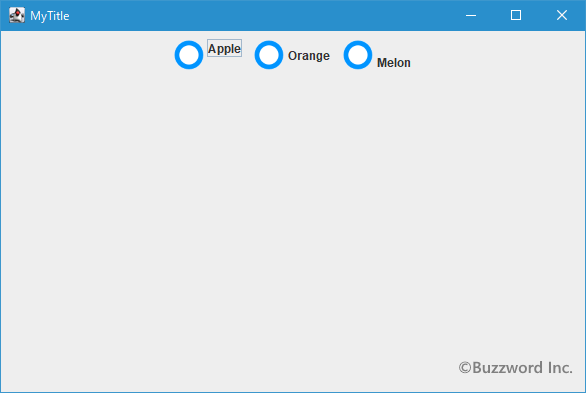
ラジオボタンを 3 つ追加しました。それぞれのラジオボタンには文字列と画像が表示されていますが、 1 つ目のラジオボタンは文字列と画像が上端で揃って表示、 2 つ目のラジオボタンは文字列と画像が中央で揃って表示、 3 つ目のラジオボタンは文字列と画像が下端で揃って表示されています。
画像と文字列の間隔を設定する
画像と文字列の間の間隔を設定する事も可能です。デフォルトでは 4 ピクセル離れて表示されるようになっています。 JRadioButton クラスの親クラスである AbstractButton クラスで定義されている setIconTextGap メソッドを使います。
public void setIconTextGap(int iconTextGap)
アイコン・プロパティとテキスト・プロパティが両方とも設定されている場合に、このプロパティはそれらの間の距離を定義します。
このプロパティのデフォルト値は4ピクセルです。
これはJavaBeansバウンド・プロパティです。
パラメータ:
iconTextGap - これらのプロパティが設定されている場合、アイコンとテキストの間のスペース。
引数には文字列と画像の距離をピクセル単位で指定します。
実際の使い方は次のようになります。
JRadioButton radio = new JRadioButton("Apple");
ImageIcon icon = new ImageIcon("./img/sample.png");
radio.setIcon(icon);

radio.setIconTextGap(10);
それでは簡単なサンプルプログラムを作って試してみます。テキストエディタで次のように記述したあと、 JSample12_3.java という名前で保存します。
import javax.swing.JFrame;
import javax.swing.JRadioButton;
import javax.swing.JPanel;
import javax.swing.ButtonGroup;
import javax.swing.ImageIcon;
import java.awt.Container;
import java.awt.BorderLayout;
import java.awt.Dimension;

class JSample12_3 extends JFrame{

  public static void main(String args[]){
    JSample12_3 frame = new JSample12_3("MyTitle");
    frame.setVisible(true);
  }

  JSample12_3(String title){
    setTitle(title);
    setBounds(100, 100, 600, 400);
    setDefaultCloseOperation(JFrame.EXIT_ON_CLOSE);

    ImageIcon icon = new ImageIcon("./not_select.png");
    ImageIcon icon_select = new ImageIcon("./select.png");

    JRadioButton radio1 = new JRadioButton("Apple", icon);

    JRadioButton radio2 = new JRadioButton("Orange", icon);
    radio2.setIconTextGap(10);

    JRadioButton radio3 = new JRadioButton("Melon", icon);
    radio3.setIconTextGap(20);

    ButtonGroup bgroup1 = new ButtonGroup();
    bgroup1.add(radio1);
    bgroup1.add(radio2);
    bgroup1.add(radio3);

    JRadioButton radio4 = new JRadioButton("Apple");

    JRadioButton radio5 = new JRadioButton("Orange");
    radio5.setIconTextGap(10);

    JRadioButton radio6 = new JRadioButton("Melon");
    radio6.setIconTextGap(10);

    ButtonGroup bgroup2 = new ButtonGroup();
    bgroup2.add(radio4);
    bgroup2.add(radio5);
    bgroup2.add(radio6);

    JPanel p = new JPanel();
    p.add(radio1);
    p.add(radio2);
    p.add(radio3);
    p.add(radio4);
    p.add(radio5);
    p.add(radio6);

    Container contentPane = getContentPane();
    contentPane.add(p, BorderLayout.CENTER);
  }
}
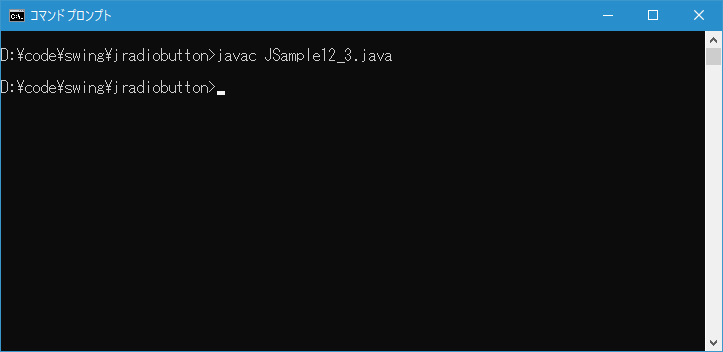
次のようにコンパイルを行います。
javac JSample12_3.java
コンパイルが終わりましたら実行します。
java JSample12_3
ラジオボタンを 6 つ追加しました。最初の 3 つには画像が設定してあります。 2 つ目と 3 つ目のラジオボタンは文字列と画像の間隔を設定してあります。
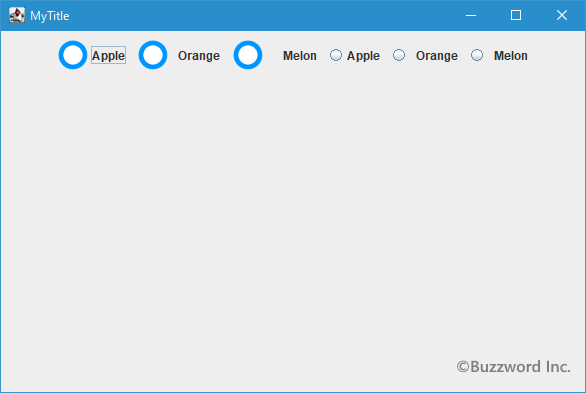
4 つ目から 6 つ目までのラジオボタンには画像を設定していませんが、もともと表示されている小さなサークルが画像と同じように文字列との間隔が設定されます。
-- --
文字列と画像の両方を表示した場合の水平方向及び垂直方向に位置関係を設定する方法について解説しました。
( Written by Tatsuo Ikura )

著者 / TATSUO IKURA
これから IT 関連の知識を学ばれる方を対象に、色々な言語でのプログラミング方法や関連する技術、開発環境構築などに関する解説サイトを運営しています。